Manually creating invoices, credit notes and payments
Manual payment creation
In the event you need to take a payment outside of the usual Take a Booking process you can do so through the Orders or Billing tabs.
Record a payment
You can record a cash, cheque, bank transfer or other type of payment in either the Orders or Billing tabs by following the same steps.
At the top of the tab click the three dots button 
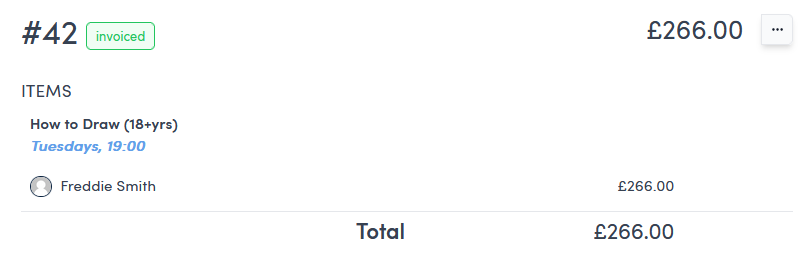
In the Orders tab this is next to the total order amount on the right hand side:
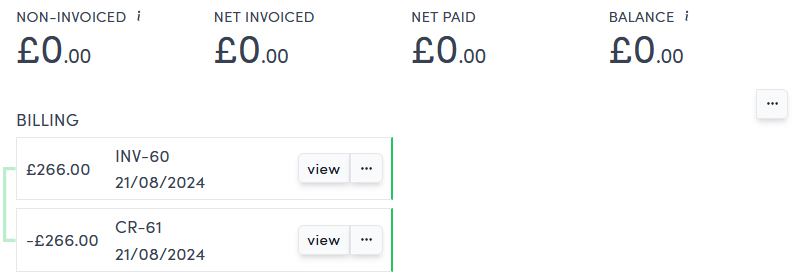
In the Billing tab this is underneath the total customer balance on the right hand side:
This will open a drop down menu, click Record payment 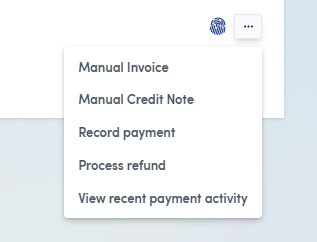
On either tab this will reveal the form to record a payment:
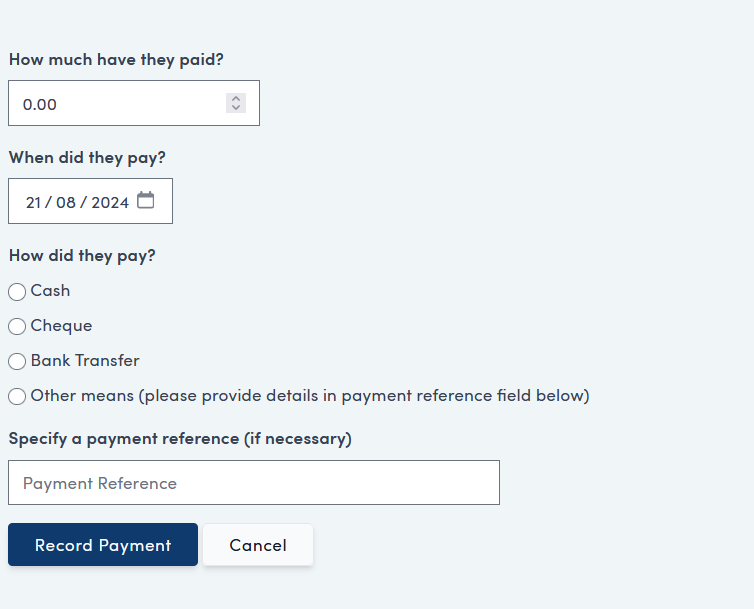
Fill in the appropriate options and click Record Payment.
This payment will then display in the Billing tab ONLY as it is not allocated to any invoices.
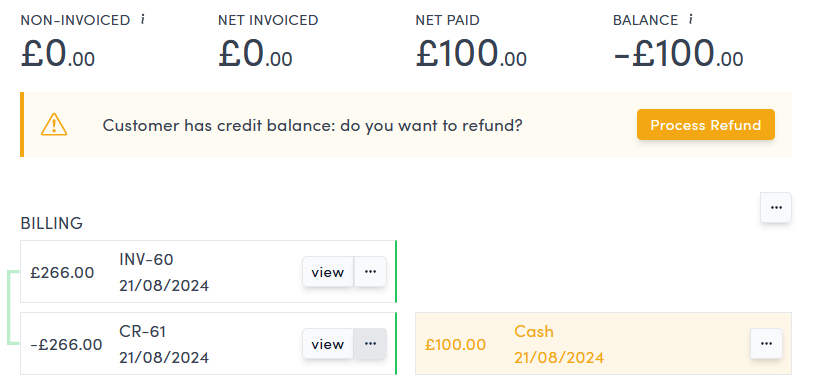
This payment is unallocated and you need to allocate it follwing the steps here: Allocation types and how to allocate
Take payment for unpaid invoices
If an invoice has been raised but not yet fully paid, a banner will show in the Orders tab, like this:
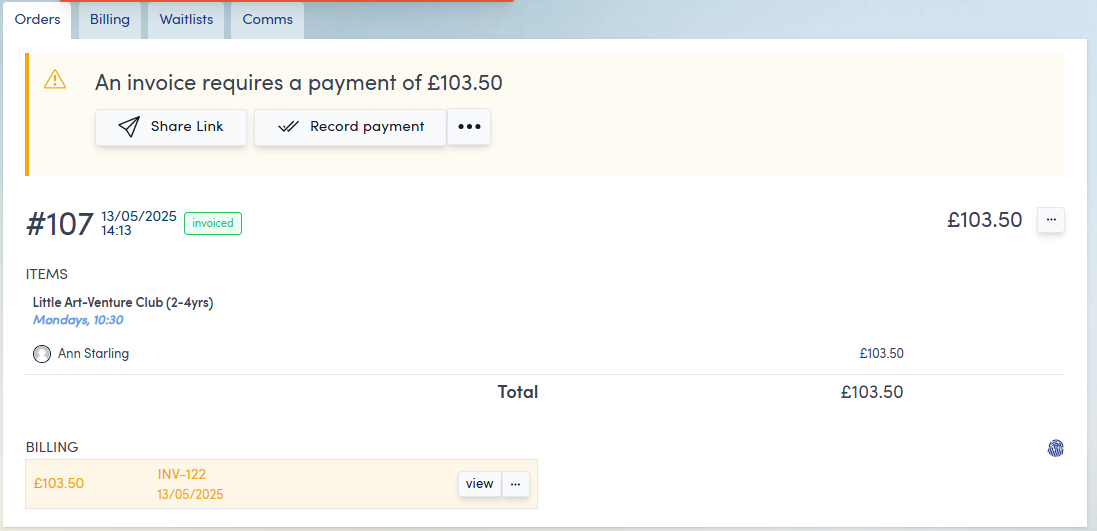
You have options to Share Link, Record payment and (behind the three dots) Take in-person payment and Take phone payment.
If you click Record Payment, follow the steps above in the Record a payment section.
If you click Take in-person payment, you will then need to take this payment on the connected card reader as you would in the Take a booking process when paying through Stripe.
If you click Take phone payment, you will be presented with a form into which you can enter payment card information. Be sure to adhere
(See the subsection below entitled Take a Partial Payment for details on how to take a partial card payment against an invoice - either in person or over the telephone).
If you click Share Link, you will be given a choice of Email link or Email allowing bank transfers to send to the customer.
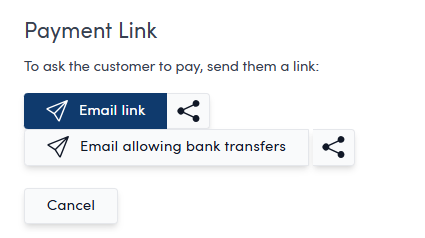
You can also use the Share icon to unlock other sharing methods supported by your browser or terminal.
Once paid, the new payment will appear on the Orders and Booking tabs.
Take a partial payment
You can only take a partial payment against an Invoice that has already been raised.
This section describes how to take partial payments by credit card in person and over the phone, through Stripe.
A partial payment using any other tender type (cash, bank transfer, etc) should be logged using the Record a Payment method described above.
Take a partial payment via credit or debit card in person
From either a specific Order or from the Billing tab, find the invoice against which you'd like to take a partial payment.
Click the three dots next to the view button against the invoice.
This will open a dropdown menu. Click Take In-Person Payment 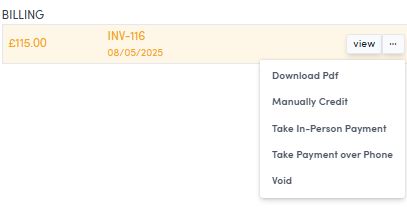
This will show you the usual animation for taking an in-person payment, inviting the customer to present their card. Below the animation, you will see a link labelled Change payment amount:
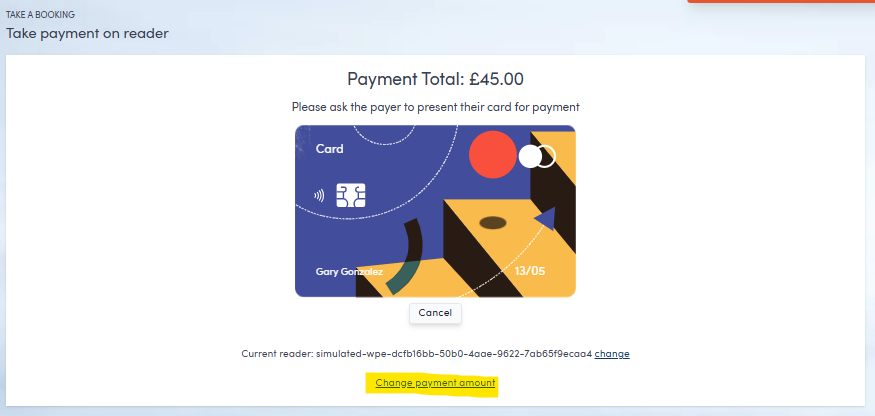
Click this link, enter the amount the Customer would like to pay and click Update.
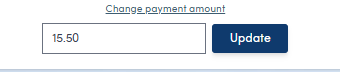
The screen will reload and the Payment Total will update at the top of your screen, and on the card reader.
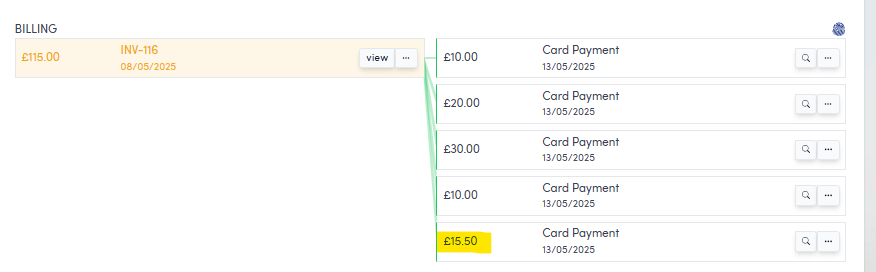
Once paid and authorised, the new payment will be shown on the relevant Order screen, and on the Billing tab, attached to the relevant invoice:
Take a partial payment via credit or debit card over the telephone
The actions required here are much the same as taking the payment in person (explained in the previous section).
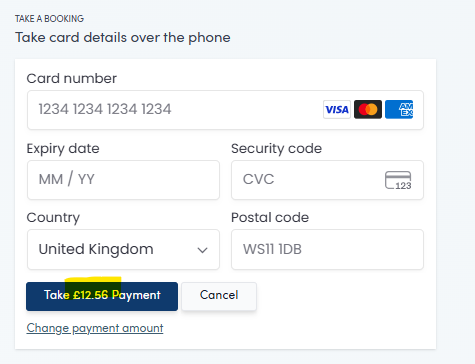
After clicking the three dots next to the invoice, select Take Payment over Phone.
Underneath the form for entering card details, you will find the Change payment amount text. Click that, enter the new amount and select Update. You will see the amount on the blue button change to the new value.
Manual invoice creation
Swiftlier is carefully designed to automate as much of the financial administration as possible. As such, the occasions on which you should have to manually raise invoices and credit notes are rare. Should you need to do so, the instructions can be found below.
Manually raising an invoice can only be done from the Billing tab by clicking the three dots button underneath the total customer balance on the right hand side.
This will open a drop down menu, click Manual Invoice
The Create Invoice page will open with a form to be completed with details of the new invoice:
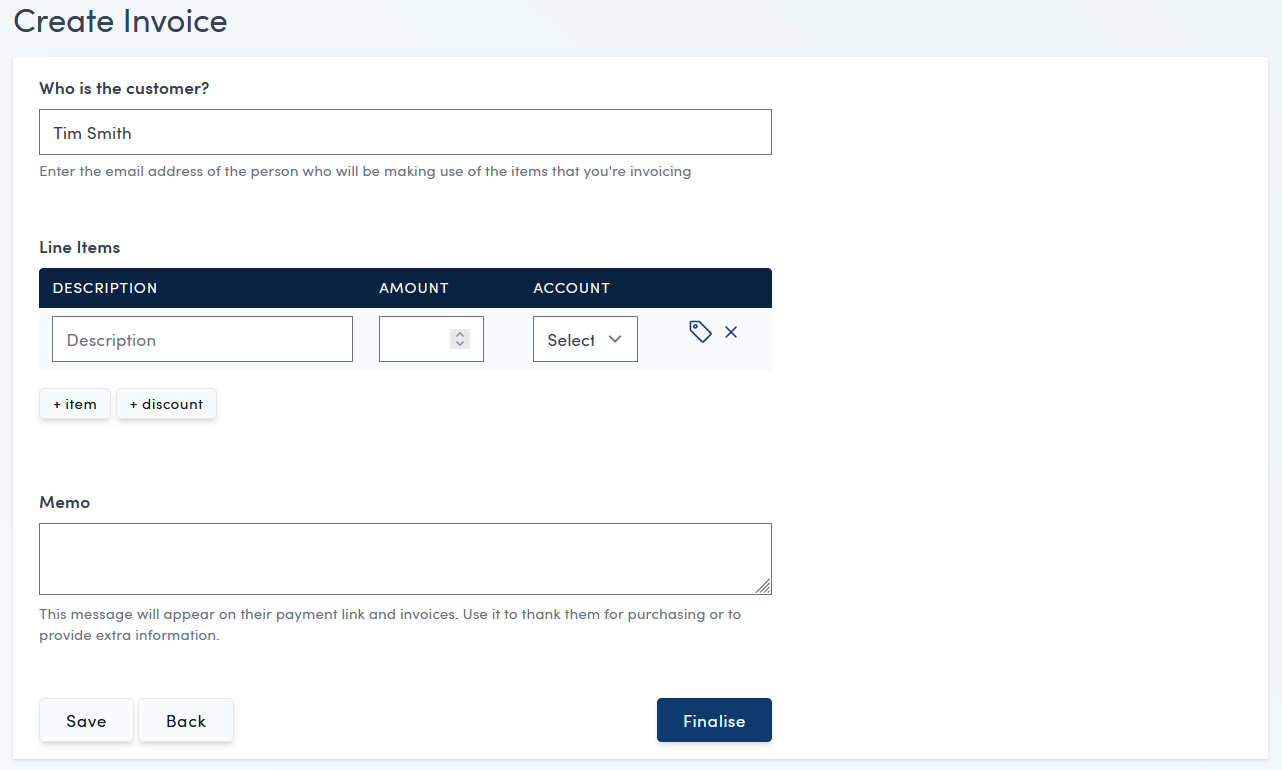
Here you can add a customer name, add and remove line items, nominate the ledger account to which this item should be posted, add and remove discounts and include a memo that will be displayed on the invoice PDF (this will inherit the standard memo text for your account, if that is set up in the account's invoicing settings).
If you click Save and then Back the invoice will appear as a draft in your Billing tab:
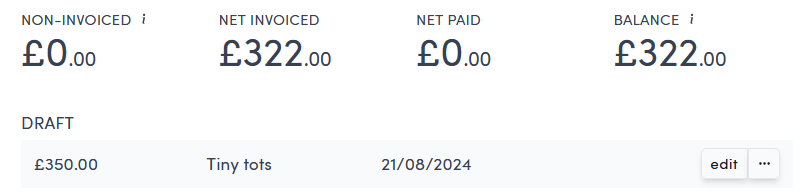
Once you are ready to add the invoice to the system, click Finalise and the newly created invoice will appear in the Billing tab.
Using this method, the invoice will not have any payments allocated to it and is currently unpaid. To change this, payments will need to be allocated as the come in - see detailed instructions here: Allocation types and how to allocate
Manual credit note creation
Manually raising a credit note can be done from either the Orders or Billing tab but it must be done against an invoice.
All invoice records in both tabs will appear with a three dots button:

Click the three dots button
To open the drop down menu:
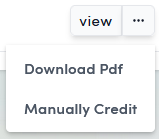
Click Manually Credit.
The Raise Credit Note page will open with a form to be completed with details of the new credit note:
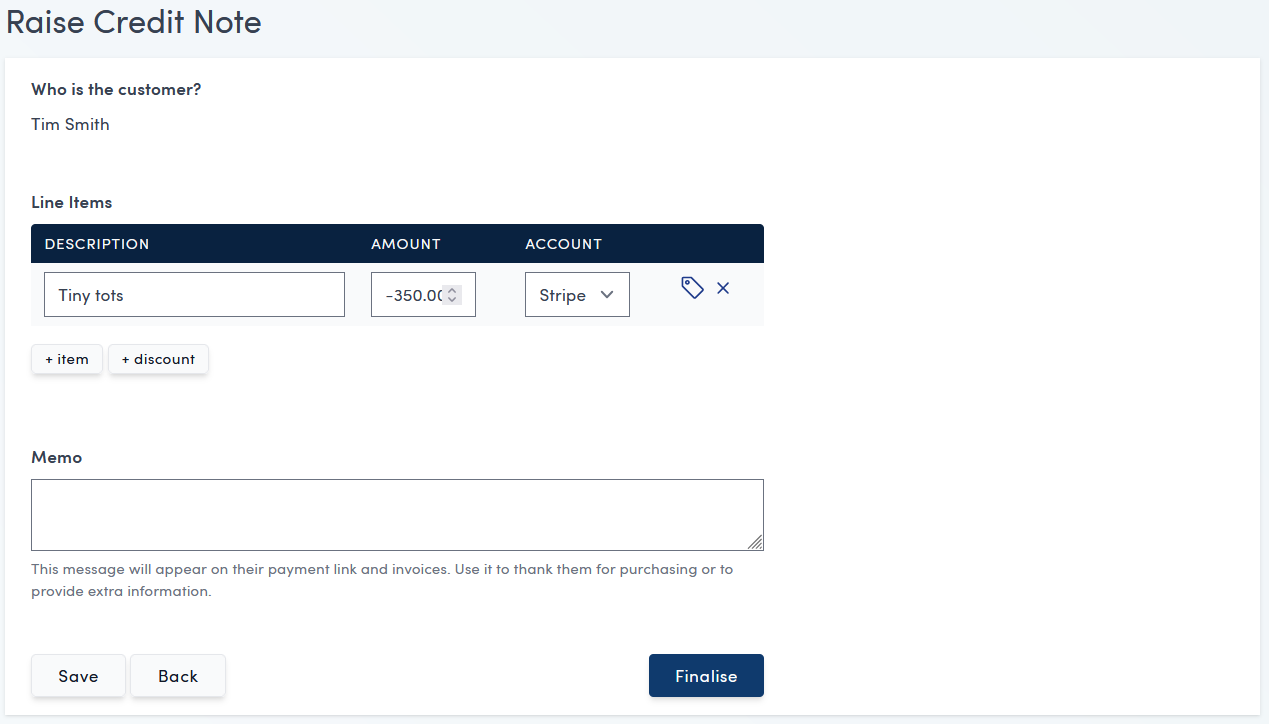
Here you can add and remove line items, add and remove discounts and include a memo.
If you click Save and then Back the credit-note will appear as a draft in your Billing tab:
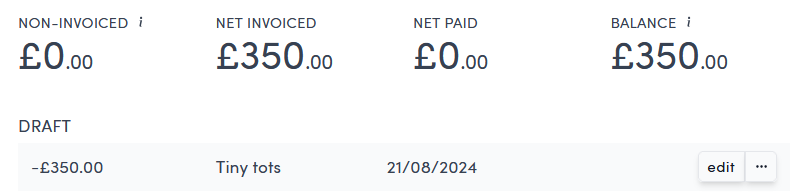
Once you are ready to add the credit note to the system, click Finalise and the newly created credit note will appear in the Billing tab with a green line link to the relevant invoice.