User Management
To add or update user roles, go to the customer record and click the invite and manage user roles icon  under their name.
Note: this action is only accessible to users with the "User Manager" role.
Add a staff user
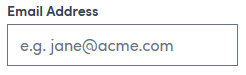
To grant a new person access to Swiftler, open their roles management page as explained above. If they do not already have an email address in the system you will need to provide one in the Email Address box near the top of the page. This is where the invite to log in will be sent.
You can choose how much of the system they have access to using the checkboxes under the 'HQ' section.
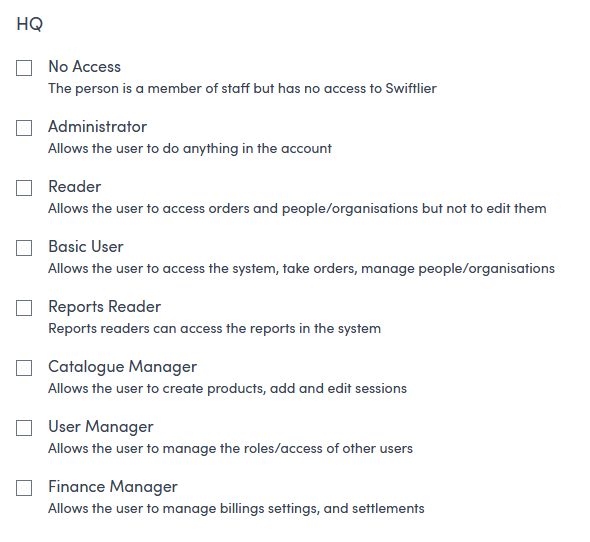
- No Access will prevent access to the system, use this when you need to remove access to system
- Administrators can do anything in the system, this is the most powerful permission
- Readers can can access the dasbaord, calendar, orders and people records but cannot edit them
- Basic users can access the dasbaord, calendar, orders and people records and can edit them
- User managers can manage user roles and permission (e.g. this page!)
- Finiance managers can manage billing settings and payments
You can add combinations of roles to meet the unique requirements of your different users.
Save your changes and send the invite using the  button at the bottom right-hand side of the page.
Update or remove staff access
Update staff permissions by opening their roles management page page and adjusting the settings as required.
Save your changes using the  button at the bottom left-hand side of the page.
Invite an instructor to the portal
Instructors need to access the portal to see and manage their classes. To grant an instructor access, open their roles management page. If they do not already have an email address in the system you will need to provide one in the Email Address box near the top of the page. This is where the invite to log in will be sent.
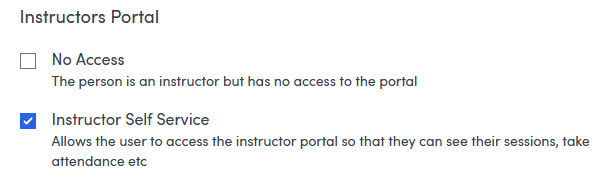
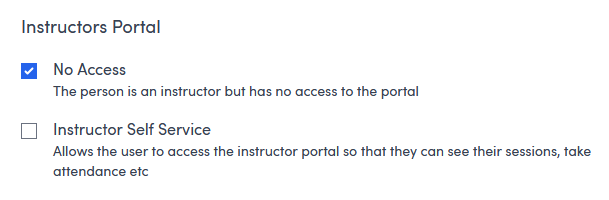
Grant access to the instructor portal by checking the Instructor Self Service option
Save your changes and send the invite using the button at the bottom right-hand side of the page.
Remove an instructors access to the portal
If you need to remove access to the instructor portal, open their roles management page and check the No Access option
Save your changes using the button at the bottom left-hand side of the page.