Allocation types and how to allocate
In Swiftlier there are different types of allocations:
- Invoice allocations - payments should be allocated to an invoice.
- Credit Note allocations - refunds should be allocated to a credit note
- Refunds can also be allocated to unallocated payments (payments which have been created manually and not allocated to any invoice)
All of these allocations can be managed in the same way - from the Billing tab click the three dots button  on the relevant payment or refund record.
Then click Allocate to open the allocate modal for each allocation.
Allocate a payment to an invoice
An unallocated payment will occur when payments are added to Swiftlier manually e.g. cash, cheque, bank transfer payments.
If a payment is unallocated it will appear highlighted orange in the Billing tab with no connecting green lines to any invoices:

Click the three dots button, then Allocate and you will see the payment allocation modal:
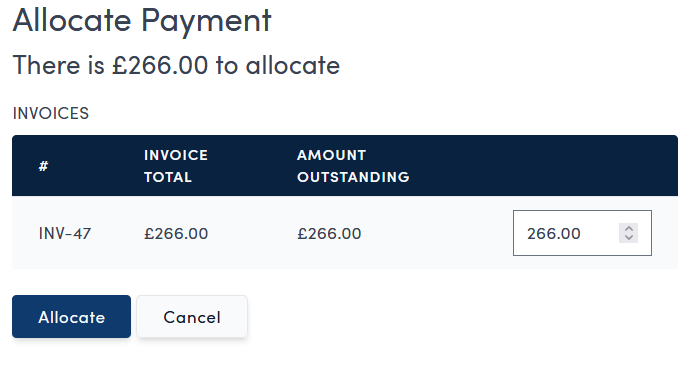
All invoices available to receive allocation will be displayed.
You can split the payment allocation between different invoices by updating the amounts accordingly. You can also partially allocate the payment, in which case it will maintain an unallocated balance that you will need to allocate later.
Once you have decided on the allocation, click Allocate and the Billing tab will be updated.
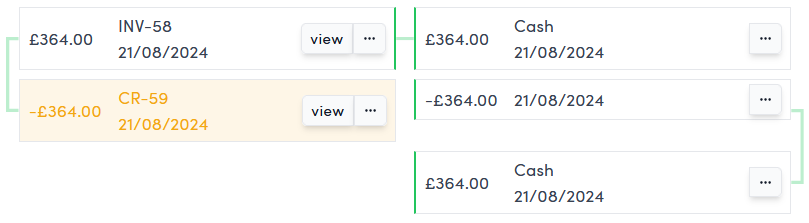
The newly allocated payment will now appear with a green line linking to the invoice it has been allocated to:

Allocating a refund to a credit note
An unallocated refund will occur after an order has been cancelled and a credit note raised then the refund is added to Swiftlier manually e.g. cash, cheque, bank transfer refunds.
If a refund is unallocated it will appear highlighted orange in the Billing tab with no connecting green lines to any invoices:

Click the three dots button, then Allocate and you will see the refund allocation modal:
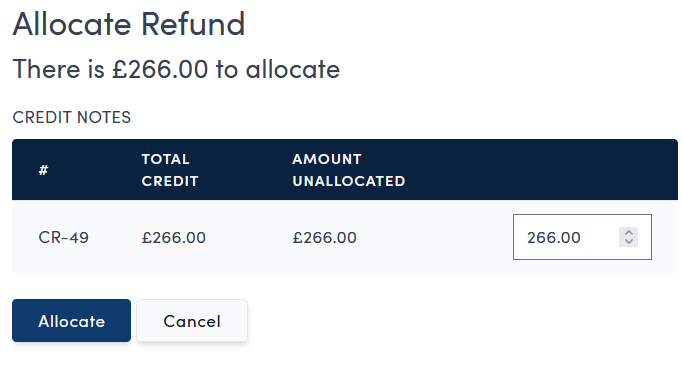
All credit notes available to receive allocation will be displayed.
You can split the refund allocation between different credit notes by updating the amounts accordingly. You can also partially allocate the refund, in which case it will maintain an unallocated balance that you will need to allocate later.
Once you have decided on the allocation, click Allocate and the Billing tab will be updated.
The newly allocated refund will now appear with a green line linking to the credit note it has been allocated to:

Allocating an unallocated refund to a payment
If you have both an unallocated payment: An unallocated payment will occur when payments are added to Swiftlier manually e.g. cash, cheque, bank transfer payments.
And an unallocated refund: An unallocated refund will occur after an order has been cancelled and a credit note raised then the refund is added to Swiftlier manually e.g. cash, cheque, bank transfer refunds.
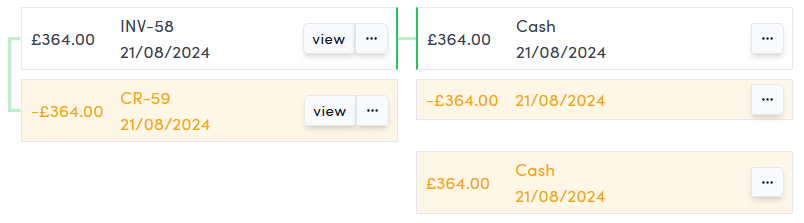
In this situation you can also allocate the refund to the unallocated payment (here you are specifically refunding that payment rather than doing so through a credit note) and the allocation modal will contain both any credit notes and payments available to be allocated to.
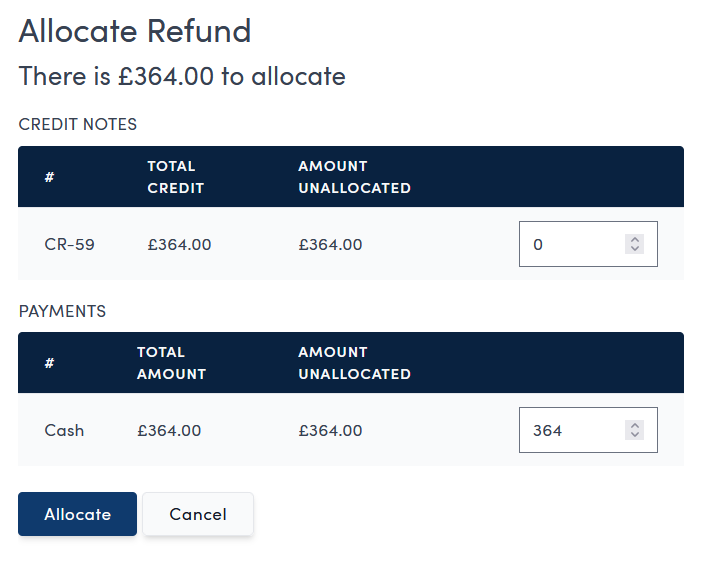
Once you have decided on the allocation, click Allocate and the Billing tab will be updated.
The newly allocated refund will now appear with a green line linking to the payment it has been allocated to: