View and print an invoice
Invoices are created:
- automatically upon the receipt of payment towards any order (including when a payment is recorded manually);
- automatically according to the Invoice Schedule of an order (e.g. when a product's Invoice Schedule Template mandates termly instalments, invoices will be raised and sent to the customer automatically). See below for more information on automatic invoicing.
- manually by users, through clicking the Raise Invoice button - if an invoice is due (according to the Order's Invoicing Schedule), and automatic invoicing is switched off for an order, Swiftlier will remind the user that an invoice should be created.
For Parties (a person or an organisation) with just one order, invoices can be viewed and downloaded from both the Orders and Billing tabs.
If a Party has more than one order, they can choose an Order from the Orders tab to view the invoices just for that order, or can see a summary of all invoices across all orders via the Billing tab.
Viewing and printing an invoice in the Orders Tab
In the Orders tab you will see a variety of information relevant to that order. If the order has had an invoice successfully created a green invoiced label  will appear next to the order number at the top of the page.
Invoice information can be seen at the bottom of the open tab. Here the Invoice number, amount and creation date are visible along with any payments or refunds that have been allocated to that invoice (marked with a green line).

To download the printable invoice pdf from this view click the three dots  to the right of the view button and invoice information.
This will open a dropdown menu. Click Download Pdf 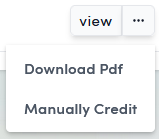
to open a new browser tab from which you can save or print the pdf version of the invoice.
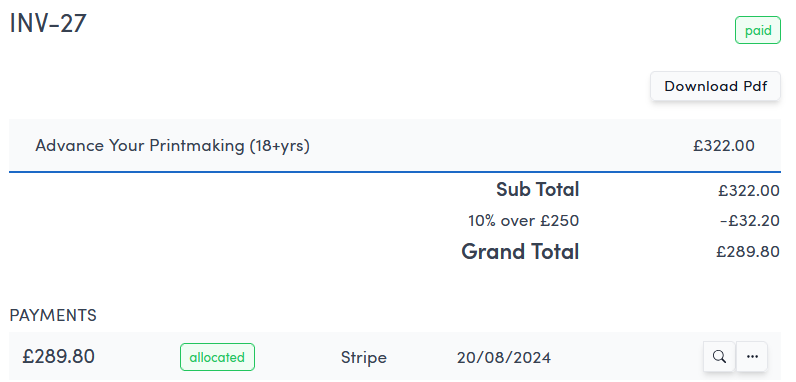
To view the invoice but not its printable pdf click the view  button to the right of the invoice information.
This will open a detailed breakdown of the infomation on that invoice. You can also click Download Pdf here to to open a new browser tab from which you can save or print the pdf version of the invoice.
Viewing and printing an invoice in the Billing Tab
In the Billing tab the method is the same as in the Orders tab above except you will see all invoices raised for that customer.
To download the printable invoice pdf from this view click the three dots on the relevant invoice to the right of the view button and invoice information.
This will open a dropdown menu. Click Download Pdf
to open a new browser tab from which you can save or print the pdf version of the invoice.
To view the relevant invoice but not its printable pdf click the view button to the right of the invoice information.
This will open a detailed breakdown of the infomation on that invoice. You can also click Download Pdf here to to open a new browser tab from which you can save or print the pdf version of the invoice.