Room hire
Starting a booking from the dashboard
Use the  button at the top of the screen.
On the "Choose the service" page, use the  button and select the "Room Booking" option.
Schedule the session
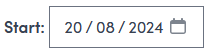
Enter the date for the room hire in the Start box to see the room availability for that day.
Enter the start and end times in the boxes next to the start date or click and drag on the calendar to block out the booking window.
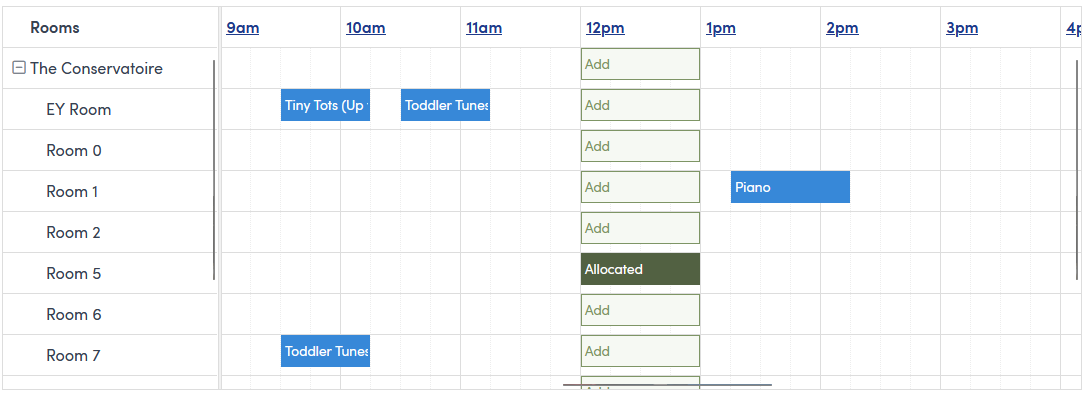
Change room
To change to another room
- Click the
 block to remove the room
 - Click
 on the row for the room you want to use
Change times
To change the times you can either change the start/end time in the boxes above the calendars or you can drag the booking block on the calendar.
Note: changing the time may change availability of rooms.
Press the  button to continue to the room hire summary
Starting a booking from the calendar
Navigate to the day you wish to make the room booking and then drag to select the time window on the room you wish to book.

This will cause a pop up to appear with several options.
- Click
 to make a one off booking, this will take you to entering the attendee details
 - Click the
 to make a recurring booking, this will take you to the room hire summary