Complete booking
Depending on whether you want to confirm the spaces on the course and how you wish to collect payment there are several options to choose from.
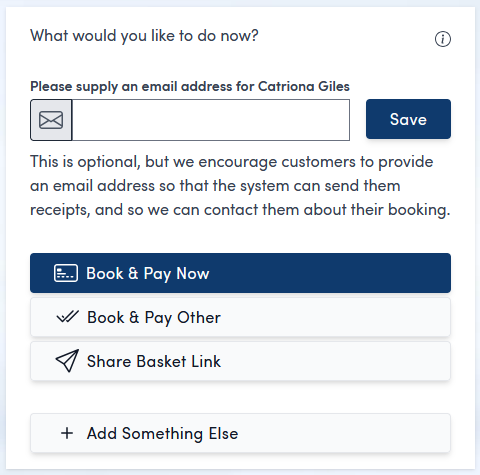
Finish booking and confirm spaces
You have two options to complete the booking and confirm the spaces.

Book and pay now allows you to collect payment using a card machine.

Book and pay other allows you to record an alternative payment type or raise an invoice for the customer to pay at a later date.
Customer is paying in person by debit or credit card
To take a payment using a card machine, select and follow on screen instructions to collect payment.
Customer is paying by cash, cheque, BACS or other method
Select and choose the first option 'They have paid with cash, cheque, BACS or some other method'
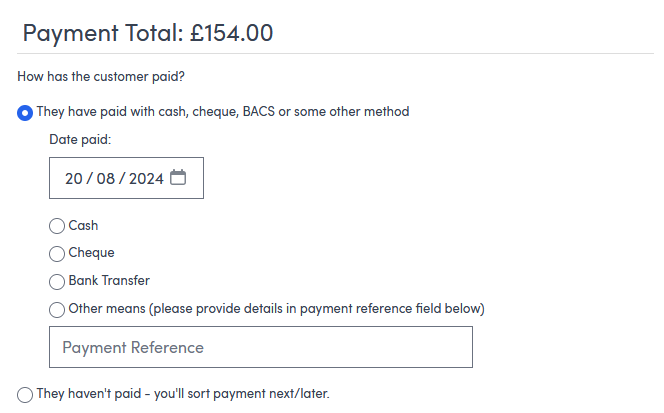
You can specify which payment method they used, when the payment was taken and any references.
After enterting the details click  to the complete the booking.
To take payment via card reader, use the  button and select choose Book & Pay in-Person
Customer will pay later
Select and choose the second option 'They haven't paid - you'll sort payment next/later'
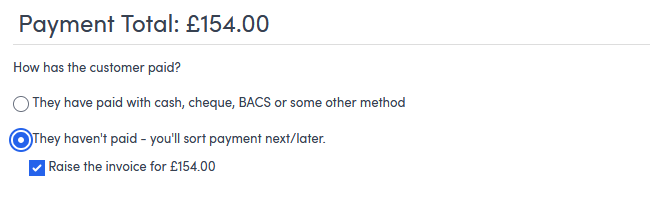
Use the button to the complete the booking.
Save draft booking
Instead of finishing the booking you can send a link to the customer to complete the booking online. Use the Email link button  to send the email directly, or use the
  button to copy the link to send seperately.
Warning! This method will not reserve the spaces for the customer until they have completed payment. To confirm their spaces and then collect payment later, instead go Back to review  and choose one of the other options