Calendar
The Swiftlier calendar gives you a quick overview of everything that is happening each day. Get to the calendar from the left hand menu using the calendar icon 
Navigation
To navigate, use the buttons to the top right above the calendar.
The arrow buttons  allows you to move forward and backwards one day at a time.
If you want to jump to a specific date, use the  button and enter the date in the drop down that appears
  or click the calendar icon to select a date instead. Once you enter or pick a date, the calendar will jump to that date.
The  button is a handy shortcut to allow you to jump back to today.
Views
The default view for the calendar is the 'day' view, however, you can switch to a list view using the list button  . Change back again by using the day button
On both views you can hover over an item to see more information about the class, incuding the availability.
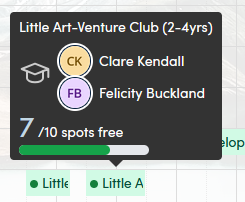
You can click on a calendar or list item to go to the class overview or see more information about a room hire.
To print the schedule for a day, use the print button above the calendar 
There are two print options you can choose from the drop down

- By session will print the schedule divided into group and then individual classes.
- By room will print the schedule divided by rooms.
Starting a room booking
You can start a room booking from the calendar, drag on the room for the time period you wish to book. Learn more about room bookings here