Customer Portal
A key piece of the Swiftlier platform is the Customer Portal.
The Customer Portal is a secure online area, just for your customers and students. It enables them to manage their bookings and their data, and helps them provide everything you need in order to run their courses safely and successfully.
People Profiles (HQ) and Accounts (Customer Portal)
Note that not all Customers who have a record in Swiftlier HQ will have an online account - just because someone is in the HQ system with a booking doesn't necessarily mean they have created a Portal account. The Portal requires a separate sign up.
We advise that all Customers are encouraged to create a Portal account, as it's the most efficient way for them to complete their onboarding and to find all the info they need!
You can see if someone has a Customer Portal account by navigating to their Invite & manage user roles page and clicking the Customer Portal tab:

If the User Account field is showing a tick, the customer has set up an account for the Portal.
If the User Account field has a cross against it, that means they haven't yet set up an account. They can Sign Up via any of the routes explained in the following section.
Signing Up / Creating an Account
There are a number of routes via which Customers can sign up for a Portal account:
- Self-sign up after completing a purchase on the online shop. After completing their transaction, the Customer will be shown this button:
 . Customers can click this, then choose a password and set up their account.
 - HQ invitation. HQ staff members can invite Customers to sign up for the Portal. To do this, find the person you want to invite in Swiftlier HQ, and click on the Invite & manage user roles button
 under the person's name. On the next screen, click the Send Invite button (we suggest confirming with the Customer that the email on file is correct before doing so).
 - Invitation from another person. On logging in to the Portal, a Customer may decide that they are not the right person to complete the onboarding for a child for whom they have booked. Instead, they can invite someone else to complete the onboarding. This functions in the same way as an HQ invitation, but with the invite triggered from within the Portal rather than HQ.
- Self-sign up whilst completing a purchase on the online shop. This is similar to the first bullet point, except the sign up takes place before the purchase is completed. Customers can click the link to say they're an existing customer
 . They are prompted to enter their email address. At this point, Swiftlier will notice that their account has not been activated, yet, and will ask them to verify their email address and create a password. After doing so, the user is returned to the Shop to complete their purchase.
 - Self-sign up at any time. Customers can sign up for the Portal at any time by browsing to the Portal and entering their email address. At this stage, Swiftlier will check whether a Profile exists for the person in question. If a Person record doesn't exist, it will create one for them, and then email them with a link to verify their email address. If a Person record does exist, it will send an email to the email address on file with a verification code. In both circumstances, the result is a Person record in Swiftlier that is linked to the account.
Email Verification
Swiftlier requires all Portal users to verify that they have access to the email account they are using to Sign up, before they can make full use of the Portal's functionality.
For the two 'invitation' routes (numbers 2 and 3 in the above Signing Up section), verification is implicit in the fact they've had to access their email box to use the sign up link.
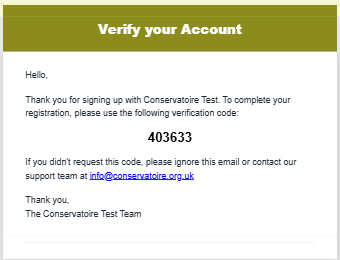
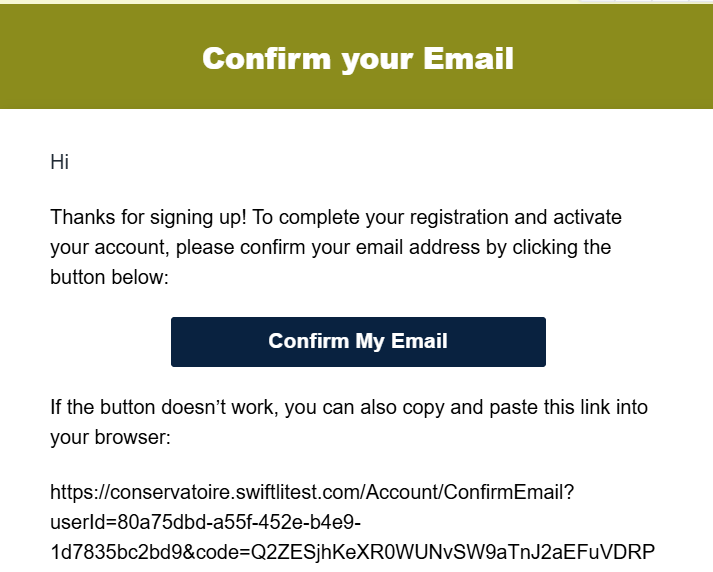
For all of the self-sign up options (numbers 1, 4 and 5), a code or link is sent to their email addresses as part of the self-sign up process. The emails look like this:
Code (numbers 4 and 5)
Link (number 1)
Swiftlier HQ users can see whether a person has verified their email address in the Invite & Manage User Roles menu, on the Customer Portal tab:
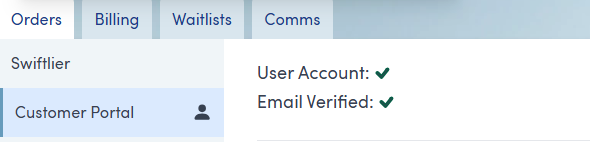
Only option 1 above can lead to a circumstance when the user has an Account but it is not verified:
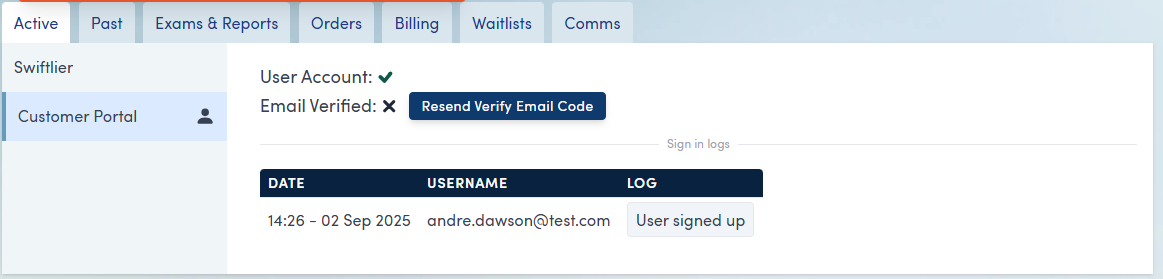
If an option 1 user does not verify their account, they will lose access to the Portal's functionality after 2 hours. They will only regain the functionality once they have completed the verification.
It is possible to re-send the link to Verify to customers using the button next to the Email Verified: X field.
Password Reset emails (see below) will only be sent to Verified accounts.
Sign in logs
The Sign in logs provide an audit for each individual's Portal account, covering sign up and log in attempts. This is designed to help you troubleshoot a variety of customer account issues.
You can find it by clicking the Invite & Manage User Roles icon and then Customer Portal. It will look something like this:
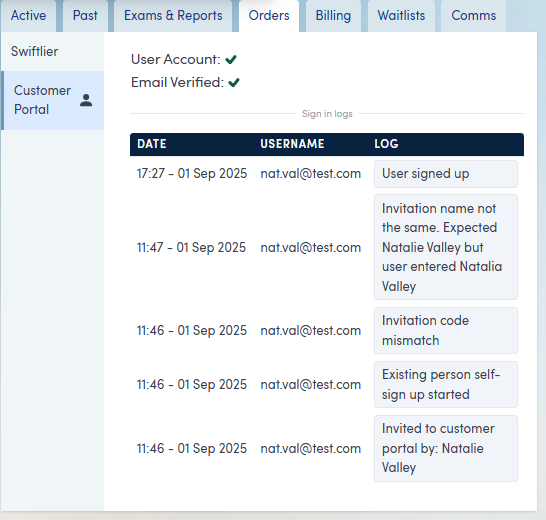
You will see the time of the event and a description of any errors that the customer will have experienced. This will help you to troubleshoot any issues customers are having with creating and accessing their Portal accounts.
Troubleshooting Portal access / content issues
Below are some common access and content issues, along with possible causes and resolution steps.
"I am unable to sign up for an account"
There are two common causes for this - a name mismatch or duplicate profiles for their email address in Swiftlier HQ.
Name Mismatch
When a customer has a profile with an email address in Swiftlier HQ, and they are trying to create a Portal account with that same email address, they are asked to confirm their name as part of the sign up process.
If the first name and/or last name they enter doesn't match exactly with what's on the record in Swiftlier HQ, their submission will be rejected and the user will see this message:
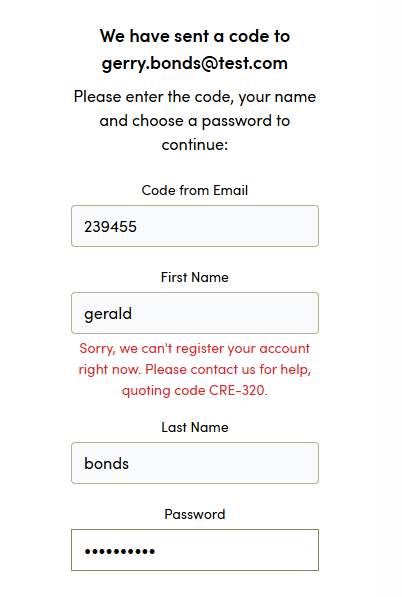
The CRE-320 error means the customer has entered a name that's different from the one we were expecting based on the email address.
In the Swiftlier Sign in logs for that customer, you will see:
To resolve, you can send the customer an invitation email from their profile, which will avoid them having to enter their names at all. We would advise against telling them the name they need to enter, for security reasons.
Duplicate profiles in Swiftlier HQ
If the same email address is attached to two People records in Swiftlier HQ, and that person tries to create a Portal account, they will not be able to do so. The customer will see an error message telling them that 'Something went wrong' and advising them to contact customer services.
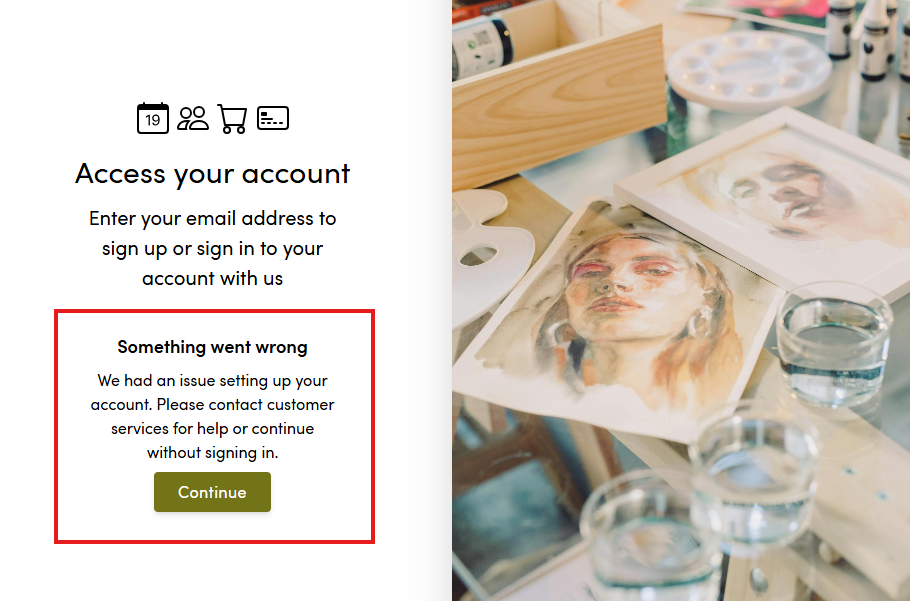
To solve this, the duplicate profiles in HQ first need to be merged into one profile.
To do this:
- Access the People & Orgs search from the left side bar
- Search for the Customer's email address - note how many duplicates there are
- Click on one of the records
- Click the Archive & Merge icon underneath the Customer's name:
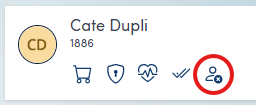
- Swiftlier will suggest other profiles for you to merge with the current one
- Complete as many merges as necessary until you are left with a single record for the email address
Once the profiles have been merged and there is only one remaining, you can send the Customer an invitation link using the Send Invite button.
Remember you can proactively manage duplicates using the Duplicates list, under People & Orgs in the Sidebar menu.
"I have signed up, but I can't see any information about my bookings"
The most likely cause of this is the customer has browsed to the Portal and signed up using a different email address from the one registered in Swiftlier HQ - creating a brand new profile in the process.
Find the Customer in Swiftlier HQ, and compare the email address they have used with the email address on their profile in Swiftlier HQ. They should be using the email address linked to the Profile that has orders, invoices, etc.
If they have created a duplicate profile, confirm which email address they would like to use to log in to the Portal going forwards, and merge their accounts so the correct one is retained, and send an invite if relevant.
In the event a customer has created a new account with a very close variant of their email address - e.g. a mispelling of "gmail" as "gmial", or an email that looks like it might be the same person, Swiftlier will detect that they are related, and will show that on the Sign in logs of the original customer record, so it looks like this (right click and open in a new tab to see more detail!):
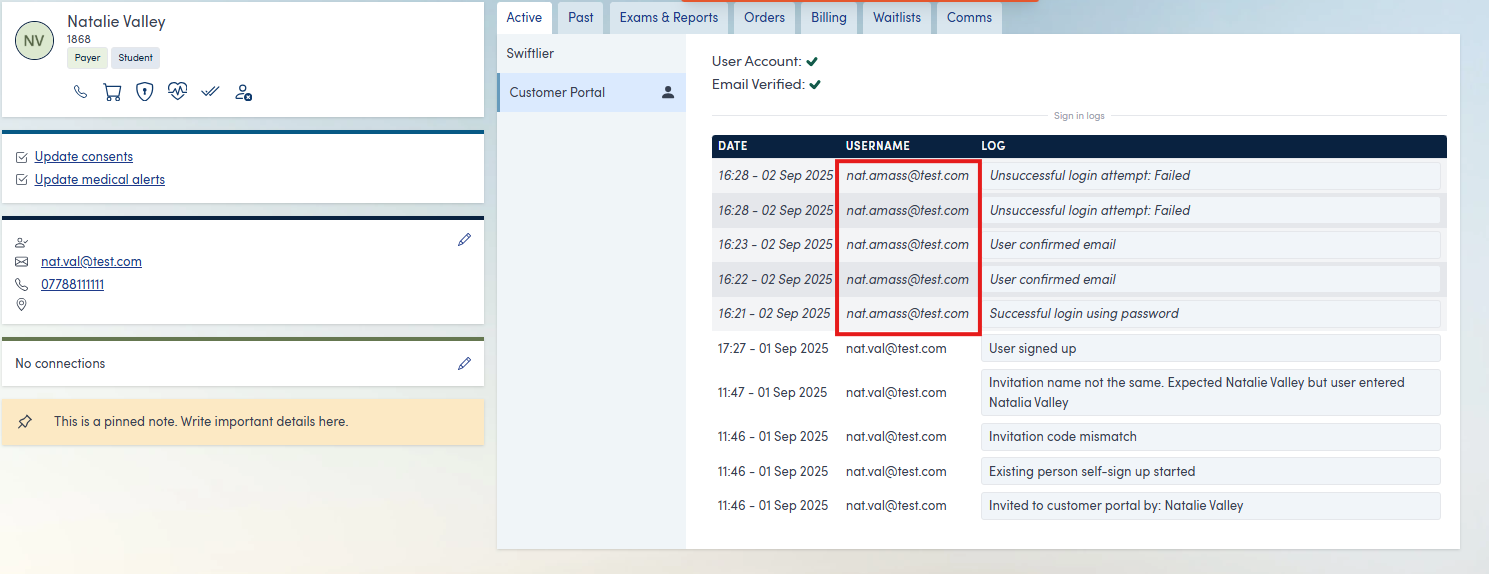
"I am unable to sign in to my account"
Firstly, check the Invite & Manage User Roles section (described above) to see whether the Customer has created their account at all.
If they haven't, you can invite them using the Invite button.
If they have created an account, the Sign in logs will show you the reason why the sign in is failing. Typically the reason will be an incorrect or forgotten password, in which case they can use the Forgotten Password routine described below.
I have forgotten my password but can't find the reset link?
Customers who have forgotten their password can request a reset link. They can browse to the Portal, and enter their email address. At this stage, Swiftlier checks whether they have an account at all - if they do, they will be directed to the enter password stage, on which there is a Forgotten Your Password? link.
Customers can click this, and an email will be sent containing a link that's valid for 60 minutes. Users then simply follow the instructions in the email to reset their password, and log in with their new credentials.
Forgotten Password email not coming through
Customers should make sure to check the Junk or Spam folders of their inboxes for the Password reset links.
Also note that password reset links will only be sent if the Customer has verified ownership of their email address. See the section on Email Verification above.
I don't know how to verify my email address
Customers verify in one of two ways:
- Customers who create their Portal account immediately after purchasing are sent an email with a link as soon as they create their account. They click that link to verify their email address, logging in if not already logged in.
- Customers who create their Portal account in the Shop before purchasing, or at any time by browsing to the portal, are sent an email containing a six-digit code, which they have to enter as part of the signing up process.
Customers who are invited to the Portal by an HQ team member or by another Portal user do not have to complete a separate verification step - they just get one email as the verification is implicit.
I have forgotten the email address I used to sign up
The response to this will depend upon your organisation's data security policies. Revealing email addresses to the wrong people is a serious data breach. If in doubt, ask a manager.
I am seeing a 'Username is already taken' error
This can occur if there are multiple profiles in Swiftlier HQ for the same email address, and both have been invited to the Portal by an HQ invite. We would suggest merging the two profiles on Swiftlier HQ - but make totally sure they are the same natural person, first!
Questions and assistance
Don't hesitate to contact us if you need any further help - the Portal is complicated and sometimes individual cases will require some more detailed investigation. You can reach us on help@swiftlier.com at any time.