Communications
You can easily send emails and/or text messages to all attendees on a class. From the class overview use the three-dot icon  in the top right hand of the screen (next to Take a booking) to view the available actions and choose
Note: not all actions may be available to all users
The communications page shows you all previous communications sent for a class.

Send a new communication
Use the  button in the top right on the screen to send a new mesage.
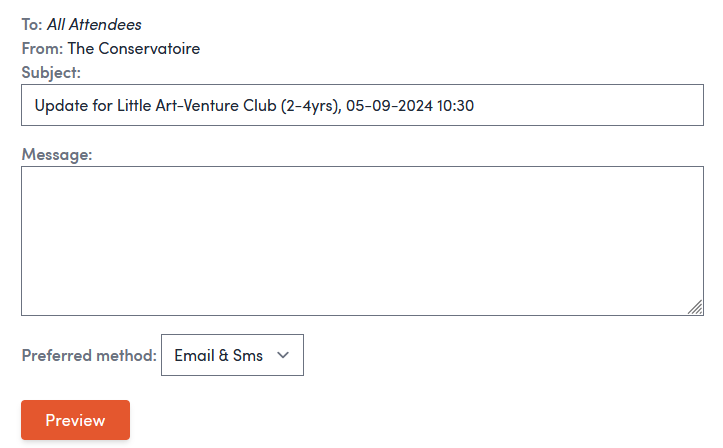
Enter the subject, message and choose you prefered method for your message and press the preview button to continue.
Preview and send
On the preview page you can see who the message is being sent to for each attendee, this defaults to the customer who made the booking and the attendee themselves. You can adjust who recieves a copy using the check boxes by each name and method.
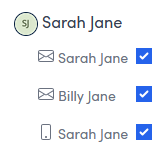
You can hover over each method to preview what the message will look like.
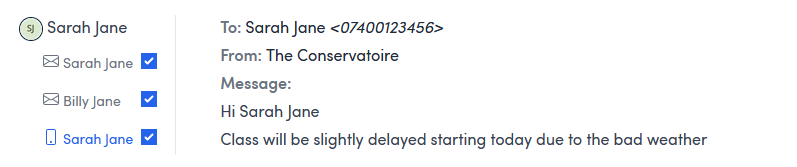 Example text message preview
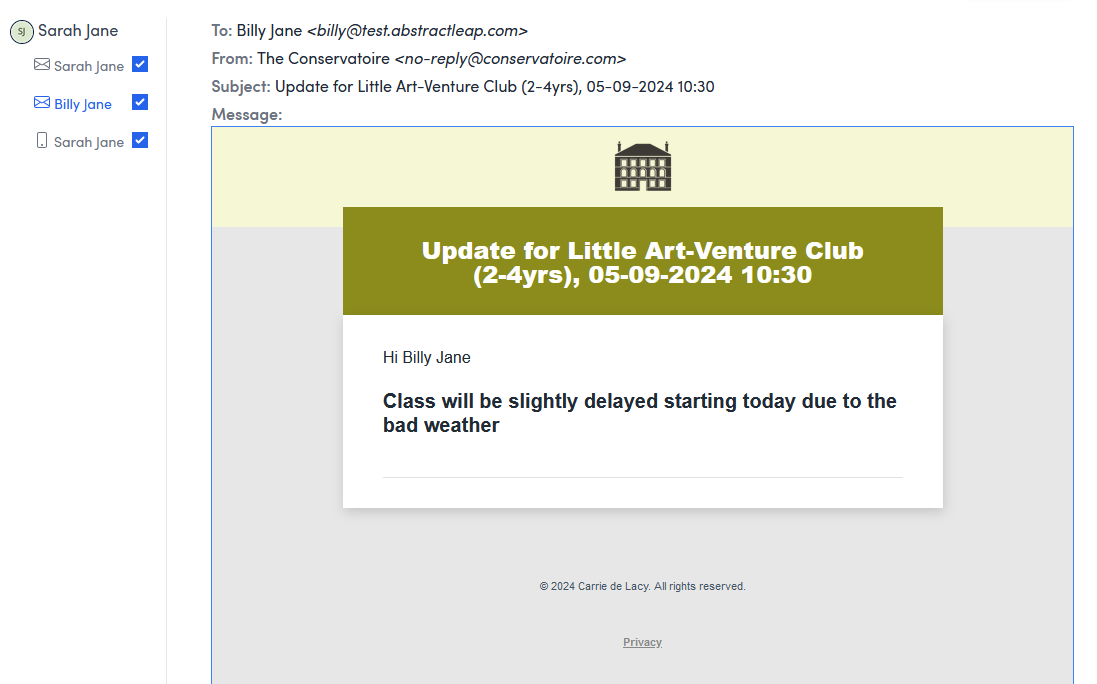 Example email preview
Once you are happy with your choices, use the  button to finish and send.